Why forms are the right tool for field photo collection
A Smartsheet Form is a one-way intake door. Someone can walk a new row in — with a photo attached — but they can't see anything that's already inside. That single property solves the two problems field photo collection always runs into.
- Privacy. The crew never touches the sheet. They see a form with a few fields and a "take photo" button, nothing else. Your data stays yours.
- Cost and scale. Form submitters don't need a Smartsheet license. Whether you have 3 field staff or 300, the cost of collection is the same, and onboarding a new person is just sharing a link.
The 5-step setup
Step 1: Build the destination sheet
Start with the columns you'll want for every photo: a primary column for the site or job name, a column for the crew member's name, a date, a status dropdown (e.g., New → Reviewed → Filed), and any classification you need — photo type, trade, area. The file uploads will attach to whatever row each submission creates, so think of these columns as the label on each photo.
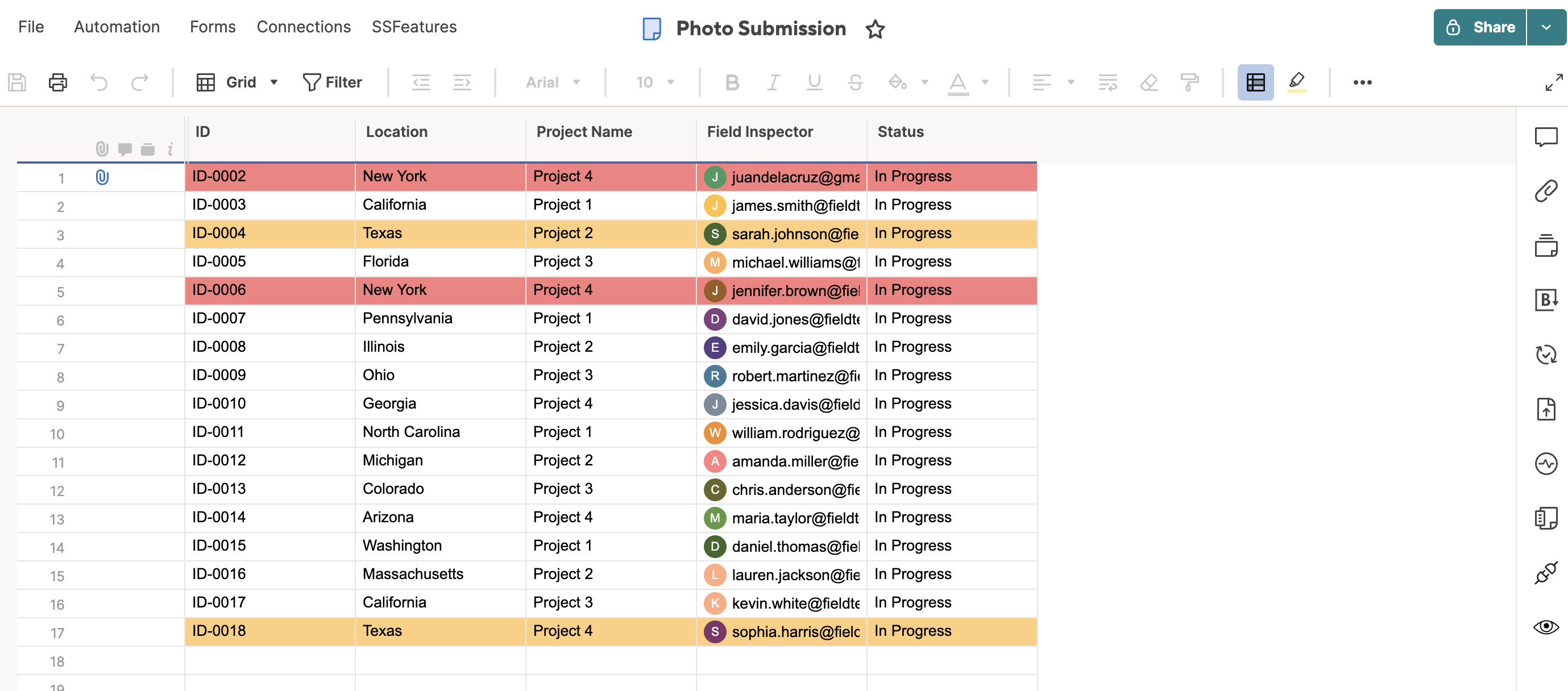
Step 2: Create a form and add a File Upload field
From the sheet, open Forms → Create Form. Smartsheet auto-generates a question for each column. Add a File Upload field, set it to required, and map the remaining questions to your context columns so no photo ever arrives unlabelled. Delete or hide any internal-only columns you don't want crews filling in.
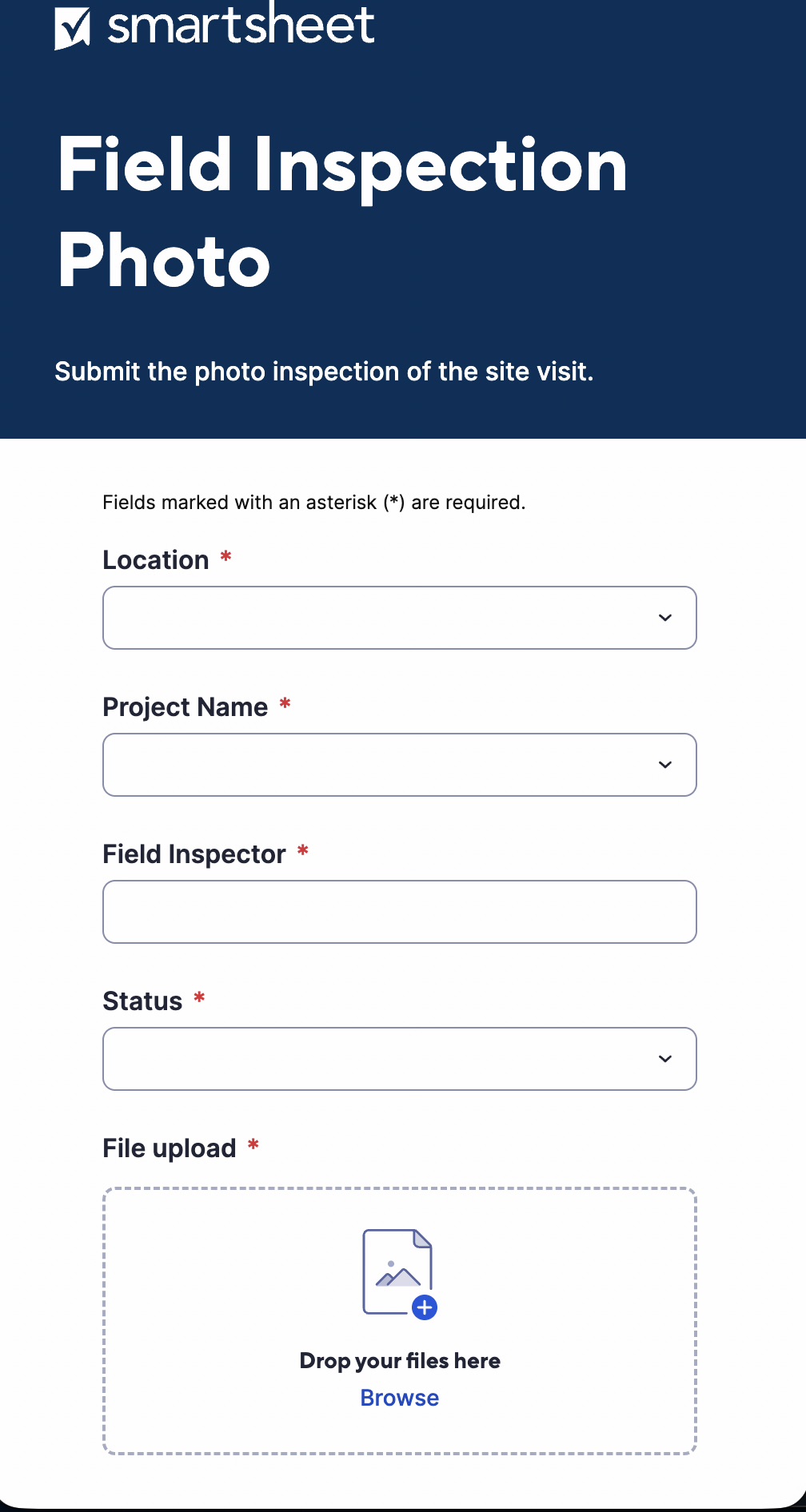
Tip: Map every visible form field to a column. A photo that arrives with no site name, no date, and no crew member attached is nearly as useless as no photo at all.
Step 3: Configure the form for mobile photo capture
Keep it short. Every extra field is a reason a tired crew skips the upload. Write plain-language labels ("Photo of the finished install"), turn on a confirmation message so people know the upload worked, and consider enabling "submit another" for jobs with multiple photos. On a phone, tapping the File Upload field offers Take Photo or Choose from Library automatically — no app required.
Step 4: Share the form link, not the sheet
Publish the form and copy its URL. Share only that link — by text, in a pinned chat message, or as a printed QR code on the job-site board. Anyone who opens it can submit; nobody can reach the sheet behind it. A QR code is the highest-adoption option: crews scan and submit without typing a URL or logging in.
Heads up: File upload on forms requires a qualifying Smartsheet plan (Business or higher). On lower tiers the field may be unavailable — verify your plan supports it before designing the workflow around it.
Step 5: Review and manage submitted photos
Every submission creates a new row with the photo in the row's attachments. Open it from the attachment icon, then use the Status column to track what's been reviewed. Set up a notification automation ("when a new row is created, alert the office") so a photo from the field is seen in minutes, not at end of day. For deeper automation logic, see Smartsheet's official automation documentation.
Important: check current limits
For the exact, current file-size limits and the full list of supported attachment types, check Smartsheet's official help center:
Limits can change and vary by plan, so confirm against the source before you roll this out company-wide.
When this approach won't work
- You need crews to edit existing rows, not just add new ones. A form only creates new rows. If a field user must update or correct a record that already exists, you'd need a licensed editor, a row-level Update Request, or a Dynamic View setup instead.
- Your photos or videos exceed the per-upload size limit. Forms enforce a maximum file size that varies by plan. Standard phone photos are usually fine, but video and large batches can be rejected. If you routinely need large files, plan for cloud-storage links instead.
- You're on a plan tier that restricts form file uploads. File upload on forms requires a qualifying plan. Verify yours supports it before building the workflow around it.
How we built this for a regional installation contractor
A regional installation contractor we worked with had 40 installers texting completion photos to a single office coordinator. Photos arrived with no job number, no consistent naming, and no way to tell which jobs were still missing proof. The coordinator spent roughly an hour a day chasing and re-filing images.
We replaced it with one form: Job number, Installer name, Photo — shared as a QR code printed on every work order. Within a week, every completion photo was landing as a labelled row, auto-sorted by job, with a notification firing to the coordinator on each submission.
The daily chase disappeared, and for the first time the contractor could see — at a glance — which jobs were photo-complete and which weren't, without giving a single installer access to the master sheet.
Frequently asked questions
Can someone submit a photo to Smartsheet without a Smartsheet account?
Yes. A Smartsheet Form can be filled out by anyone with the link, and a File Upload field on that form lets them attach a photo. The submitter does not need a Smartsheet account, a paid license, or any access to the sheet the form feeds. This is the core reason forms are the right tool for field crews, subcontractors, and other external users who only need to send data in, not see what is already there.
Do field teams need access to the sheet to upload photos?
No, and that's the point. The form is a one-way intake: a submitter can add a new row with a photo, but they cannot view, edit, or download anything already in the sheet. Access to the underlying sheet stays limited to your internal team — protecting client data, pricing, and other rows while still letting an unlimited number of field staff contribute photos.
How do field crews take photos directly from their phones?
Smartsheet forms are mobile-responsive, so the form opens cleanly in any phone browser. When a crew member taps the File Upload field, the phone offers the option to take a new photo with the camera or pick an existing one from the gallery. No app install is required, though the Smartsheet mobile app is an option if your team prefers it. Sharing the form as a QR code makes it a one-tap action on site.
Is there a file size or file type limit on form attachments?
Yes. Smartsheet enforces a maximum file size per upload, and the limit can differ by plan — always confirm the current number in Smartsheet's official documentation before rolling out. Standard phone photos are well within range, but high-resolution images or short videos can hit the cap.
How is this different from emailing photos to the office?
Email scatters photos across inboxes with no structure, no status, and no easy way to see what's missing. A form lands every photo as a labelled row in one sheet, tagged with the site, date, and any other context you require. You can sort, filter, report, and trigger automatic notifications — none of which is practical over email. It turns a pile of attachments into a searchable, trackable record.
Related: If you also need vendors or subcontractors to submit structured data (not just photos) without sheet access, read our guide on how to let vendors submit data to Smartsheet without giving them sheet access.